> ## Documentation Index
> Fetch the complete documentation index at: https://docs.perfectreferral.com/llms.txt
> Use this file to discover all available pages before exploring further.
# Quickstart
> Create an account, get an API token, and make your first request
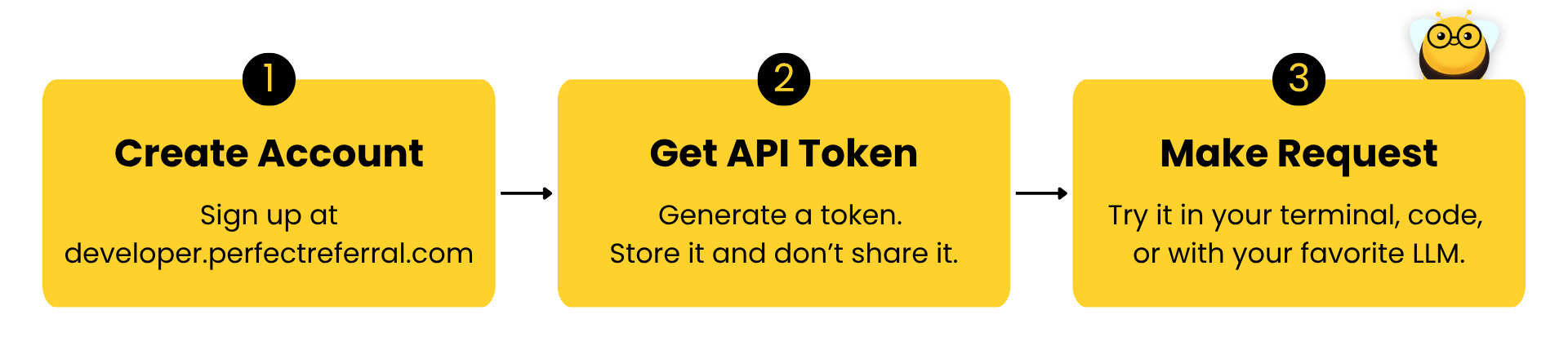
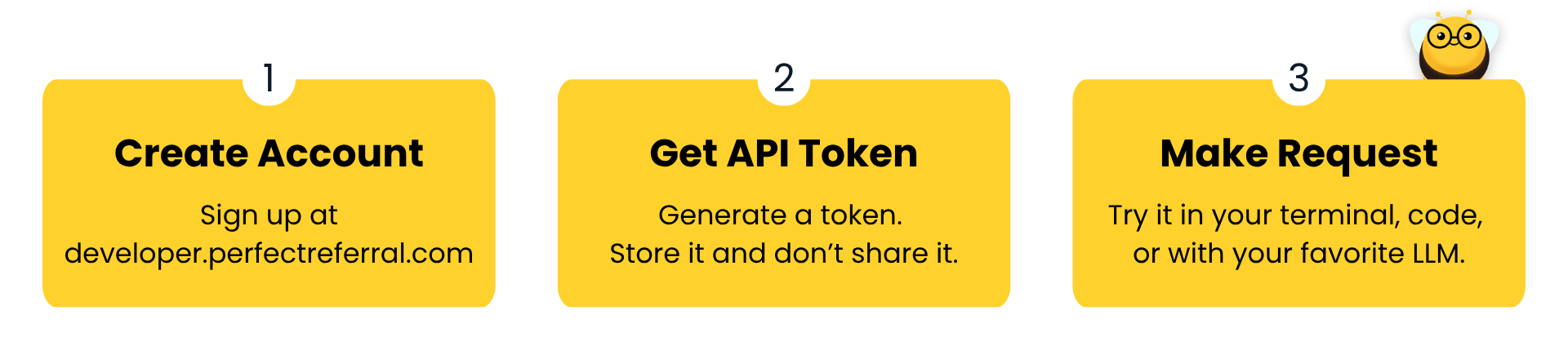 This guide takes you from zero to your first successful API call. By the end
you'll have an API token and a working request that looks up a practitioner by
their NPI number.
**New to working with APIs?** An API is just a way for your software to ask
ours a question and get a structured answer back. You will need an API token
to identify yourself, and from there you send a request and read the response.
This guide assumes no prior experience and shows every step.
## Create an account
Sign up at [developer.perfectreferral.com](https://developer.perfectreferral.com).
You'll use this developer portal to manage your account and API tokens.
## Create an API token
Once signed in, go to the **API tokens** section of the developer portal.
Click **Create API token**, give it a descriptive name (for example,
`local-testing` or `production`), and confirm.
Your token is shown **only once**. Copy it and store it somewhere secure,
such as a password manager.
Treat your API token like a password. Don't commit it to source control,
paste it into client-side code, or share it. If a token is exposed, revoke
it in the developer portal and create a new one.
## Make your first request
Every request is authenticated with your API token sent as a **Bearer token** in
the `Authorization` header, and is made against the base URL:
```
https://api.perfectreferral.com/v1
```
The example below looks up an individual practitioner by their
[NPI number](https://npiregistry.cms.hhs.gov/) using the
`GET /practitioners/{npiNumber}` endpoint. Replace `YOUR_API_TOKEN` with the token
you just created and `1234567890` with the NPI you want to look up.
```bash curl theme={null}
curl https://api.perfectreferral.com/v1/practitioners/1234567890 \
-H "Authorization: Bearer YOUR_API_TOKEN"
```
```python Python theme={null}
import requests
API_TOKEN = "YOUR_API_TOKEN"
npi_number = "1234567890"
response = requests.get(
f"https://api.perfectreferral.com/v1/practitioners/{npi_number}",
headers={"Authorization": f"Bearer {API_TOKEN}"},
)
response.raise_for_status()
print(response.json())
```
```javascript JavaScript theme={null}
const API_TOKEN = "YOUR_API_TOKEN";
const npiNumber = "1234567890";
const response = await fetch(
`https://api.perfectreferral.com/v1/practitioners/${npiNumber}`,
{ headers: { Authorization: `Bearer ${API_TOKEN}` } },
);
if (!response.ok) {
throw new Error(`Request failed: ${response.status}`);
}
console.log(await response.json());
```
The Python example uses the [`requests`](https://pypi.org/project/requests/)
library; install it with `pip install requests`. The JavaScript example uses
the built-in `fetch`, available in Node.js 18+ and all modern browsers (though
for security, only call the API from a server, never from browser code where
your token would be exposed).
## Understand the response
A successful request returns `200 OK` with the practitioner's name, their
NPPES-registered specialties, and their scope of practice:
```json theme={null}
{
"name": "Dr. Naomi Park",
"nppesSpecialties": ["Ophthalmology"],
"referralScopeMatches": [
{
"specialty": "Ophthalmology",
"target": "Cataract evaluation and surgery",
"label": "very_likely_match"
}
]
}
```
Each entry in `referralScopeMatches` pairs a **target** (a specific reason a provider
is referred into a specialty, like cataract evaluation in ophthalmology) with a **label**
describing how well the provider fits it. The API returns one of six labels: five
sit on a single scale from strong match to strong rule-out, and the sixth marks the
cases where there is too little data to judge.
| Label | What it means |
| :-------------------- | :----------------------------------------------- |
| `very_likely_match` | Strong evidence this provider fits the target |
| `likely_match` | Good evidence this provider fits the target |
| `uncertain` | Evaluable, but the evidence is genuinely mixed |
| `unlikely_match` | Good evidence this provider does not fit |
| `very_unlikely_match` | Strong evidence this provider does not fit |
| `insufficient_data` | Too little billing data to make a confident call |
The strong labels (`very_likely_match`, `very_unlikely_match`) are calibrated to be
correct at least 95% of the time, and the moderate labels (`likely_match`,
`unlikely_match`) at least 80%. See [Methodology & limitations](/methodology/referral-scope-match)
for how we derive and validate the scale.
## Next steps
Explore the full list of endpoints, parameters, and response schemas.
Need help? Reach out to us at
[support@threshold.health](mailto:support@threshold.health).
This guide takes you from zero to your first successful API call. By the end
you'll have an API token and a working request that looks up a practitioner by
their NPI number.
**New to working with APIs?** An API is just a way for your software to ask
ours a question and get a structured answer back. You will need an API token
to identify yourself, and from there you send a request and read the response.
This guide assumes no prior experience and shows every step.
## Create an account
Sign up at [developer.perfectreferral.com](https://developer.perfectreferral.com).
You'll use this developer portal to manage your account and API tokens.
## Create an API token
Once signed in, go to the **API tokens** section of the developer portal.
Click **Create API token**, give it a descriptive name (for example,
`local-testing` or `production`), and confirm.
Your token is shown **only once**. Copy it and store it somewhere secure,
such as a password manager.
Treat your API token like a password. Don't commit it to source control,
paste it into client-side code, or share it. If a token is exposed, revoke
it in the developer portal and create a new one.
## Make your first request
Every request is authenticated with your API token sent as a **Bearer token** in
the `Authorization` header, and is made against the base URL:
```
https://api.perfectreferral.com/v1
```
The example below looks up an individual practitioner by their
[NPI number](https://npiregistry.cms.hhs.gov/) using the
`GET /practitioners/{npiNumber}` endpoint. Replace `YOUR_API_TOKEN` with the token
you just created and `1234567890` with the NPI you want to look up.
```bash curl theme={null}
curl https://api.perfectreferral.com/v1/practitioners/1234567890 \
-H "Authorization: Bearer YOUR_API_TOKEN"
```
```python Python theme={null}
import requests
API_TOKEN = "YOUR_API_TOKEN"
npi_number = "1234567890"
response = requests.get(
f"https://api.perfectreferral.com/v1/practitioners/{npi_number}",
headers={"Authorization": f"Bearer {API_TOKEN}"},
)
response.raise_for_status()
print(response.json())
```
```javascript JavaScript theme={null}
const API_TOKEN = "YOUR_API_TOKEN";
const npiNumber = "1234567890";
const response = await fetch(
`https://api.perfectreferral.com/v1/practitioners/${npiNumber}`,
{ headers: { Authorization: `Bearer ${API_TOKEN}` } },
);
if (!response.ok) {
throw new Error(`Request failed: ${response.status}`);
}
console.log(await response.json());
```
The Python example uses the [`requests`](https://pypi.org/project/requests/)
library; install it with `pip install requests`. The JavaScript example uses
the built-in `fetch`, available in Node.js 18+ and all modern browsers (though
for security, only call the API from a server, never from browser code where
your token would be exposed).
## Understand the response
A successful request returns `200 OK` with the practitioner's name, their
NPPES-registered specialties, and their scope of practice:
```json theme={null}
{
"name": "Dr. Naomi Park",
"nppesSpecialties": ["Ophthalmology"],
"referralScopeMatches": [
{
"specialty": "Ophthalmology",
"target": "Cataract evaluation and surgery",
"label": "very_likely_match"
}
]
}
```
Each entry in `referralScopeMatches` pairs a **target** (a specific reason a provider
is referred into a specialty, like cataract evaluation in ophthalmology) with a **label**
describing how well the provider fits it. The API returns one of six labels: five
sit on a single scale from strong match to strong rule-out, and the sixth marks the
cases where there is too little data to judge.
| Label | What it means |
| :-------------------- | :----------------------------------------------- |
| `very_likely_match` | Strong evidence this provider fits the target |
| `likely_match` | Good evidence this provider fits the target |
| `uncertain` | Evaluable, but the evidence is genuinely mixed |
| `unlikely_match` | Good evidence this provider does not fit |
| `very_unlikely_match` | Strong evidence this provider does not fit |
| `insufficient_data` | Too little billing data to make a confident call |
The strong labels (`very_likely_match`, `very_unlikely_match`) are calibrated to be
correct at least 95% of the time, and the moderate labels (`likely_match`,
`unlikely_match`) at least 80%. See [Methodology & limitations](/methodology/referral-scope-match)
for how we derive and validate the scale.
## Next steps
Explore the full list of endpoints, parameters, and response schemas.
Need help? Reach out to us at
[support@threshold.health](mailto:support@threshold.health).